> ## Documentation Index
> Fetch the complete documentation index at: https://docs-legacy.famulor.io/llms.txt
> Use this file to discover all available pages before exploring further.
# Claude & ChatGPT Connector (MCP)
> Review Famulor assistants and omnichannel conversation history from Claude or ChatGPT through a restricted OAuth connection.
# Claude & ChatGPT Connector (MCP)
> Review assistants and omnichannel conversation history from Claude or ChatGPT through a secure, read-only OAuth connection.
The Famulor Assistant & History connector lets you **review your AI assistants and conversation
history straight from Claude or ChatGPT**. Instead of clicking through the dashboard, ask in plain
language:
* *"List my assistants and summarize how they are configured."*
* *"Show me why my last campaign call failed."*
* *"Find recent Instagram conversations that still need a reply."*
It's a **remote MCP server** secured with **OAuth 2.1**. You connect once, sign in to approve, and
every read stays scoped to **your own Famulor account**. This profile cannot change resources,
place calls, send messages, run campaigns, manage telephony, or access billing.
## What you can do
List assistants and inspect their configuration without changing it.
Review saved assistant versions and the available voice, language, model, and prompt catalogs.
Find calls and read transcripts, outcomes, and evaluations for analysis.
Search call, messaging, and email history, including connected channels such as Instagram.
The profile exposes exactly **11 read-only tools**. It has no purchase, send, call, campaign,
delete, telephony, settings, or billing tools.
## Before you start
* A **Famulor account** at [app.famulor.io](https://app.famulor.io).
* An **active plan** for the features you use (some actions consume call minutes or chat credits).
### Your connection link
This is the secure address Claude and ChatGPT use to reach your account. Copy it — you'll paste it
during setup, then sign in to approve.
```
https://app.famulor.io/mcp?profile=assistant-history
```
## Add the connector
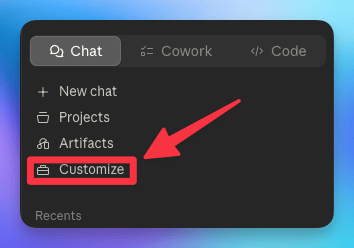
In Claude, open the left sidebar and click **Customize**.
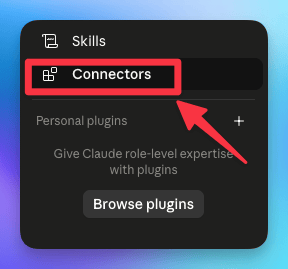
 In the Customize panel, click **Connectors**.
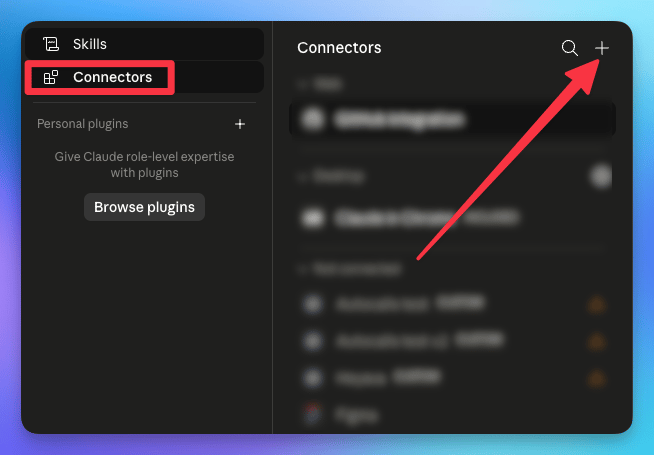
 Click the **+** button in the top-right of the Connectors panel, then choose **Add custom
connector**.
Click the **+** button in the top-right of the Connectors panel, then choose **Add custom
connector**.
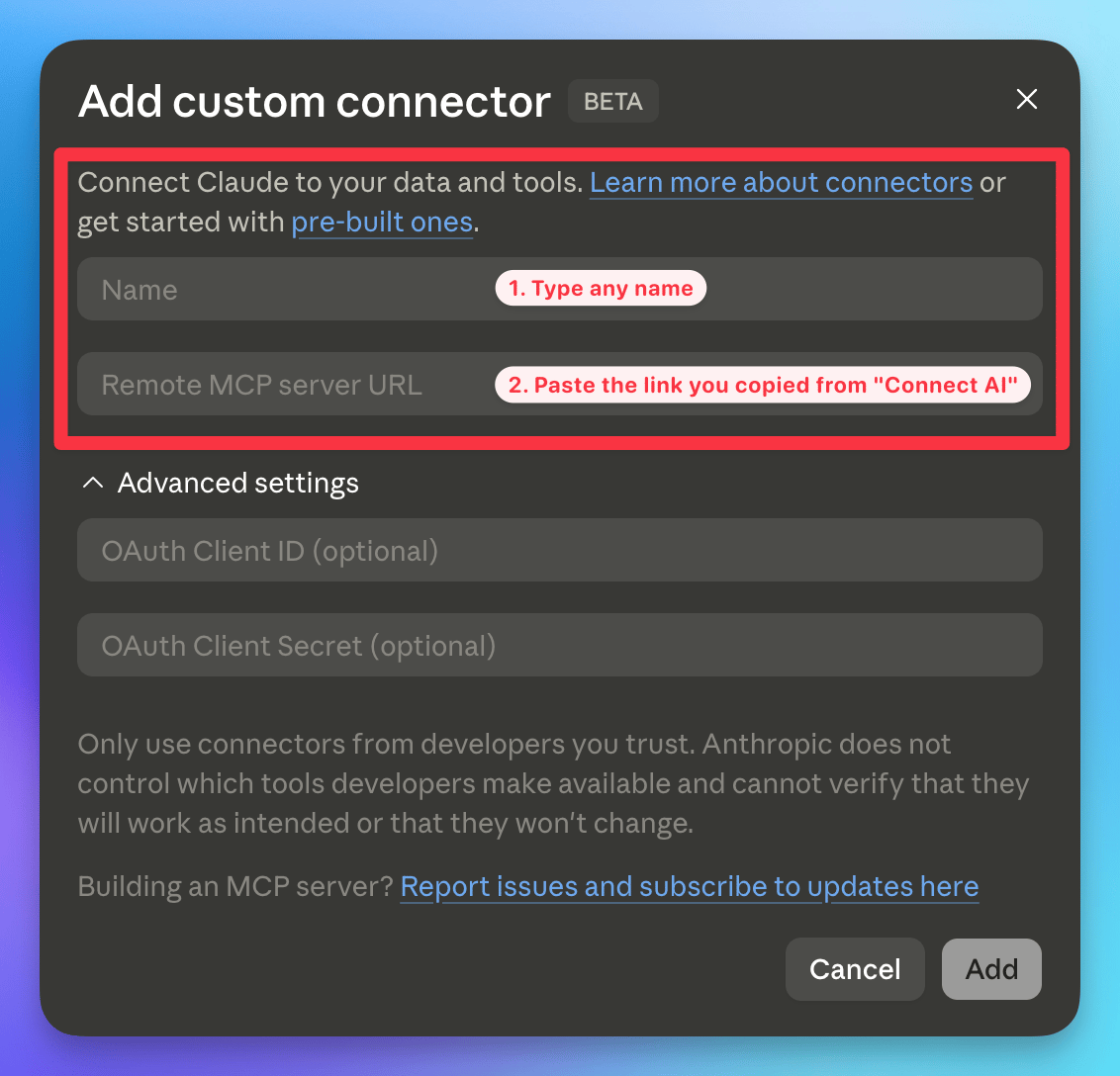
 Type any name (e.g. *Famulor*), paste your connection link into **Remote MCP server URL**,
leave the OAuth fields empty, then click **Add**.
Type any name (e.g. *Famulor*), paste your connection link into **Remote MCP server URL**,
leave the OAuth fields empty, then click **Add**.
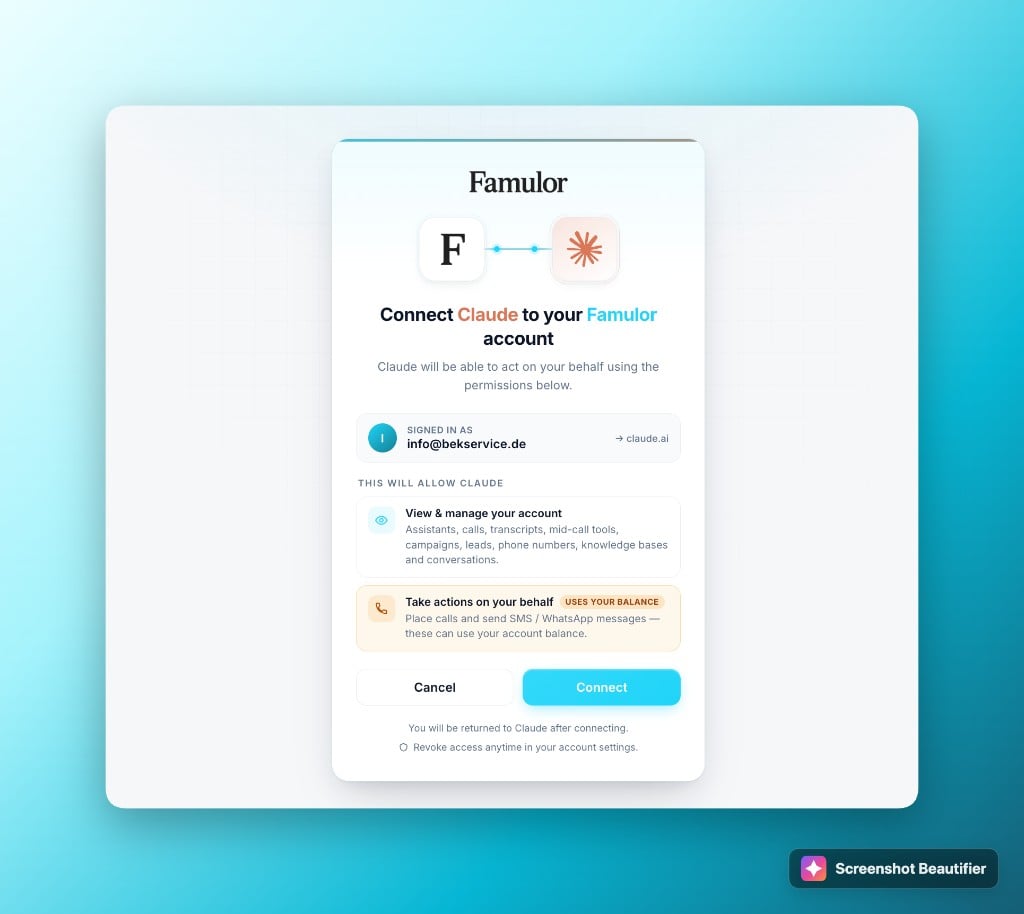
 After you click **Add**, your browser opens Famulor's OAuth consent screen. Review the
permissions, then click **Connect**. Your tools then appear in Claude — you're connected.
After you click **Add**, your browser opens Famulor's OAuth consent screen. Review the
permissions, then click **Connect**. Your tools then appear in Claude — you're connected.
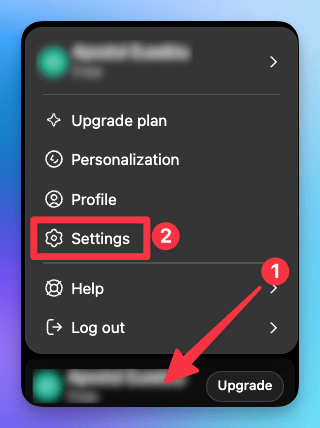
 In ChatGPT, click your name at the bottom-left, then **Settings**.
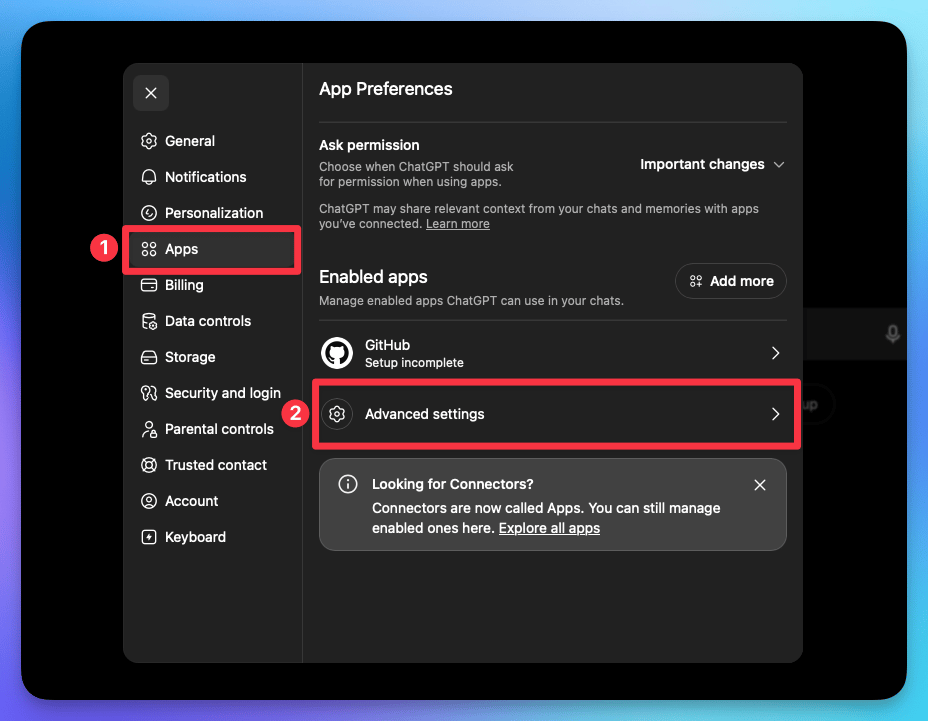
 Open the **Apps** tab (connectors now live under "Apps"), then open **Advanced settings**.
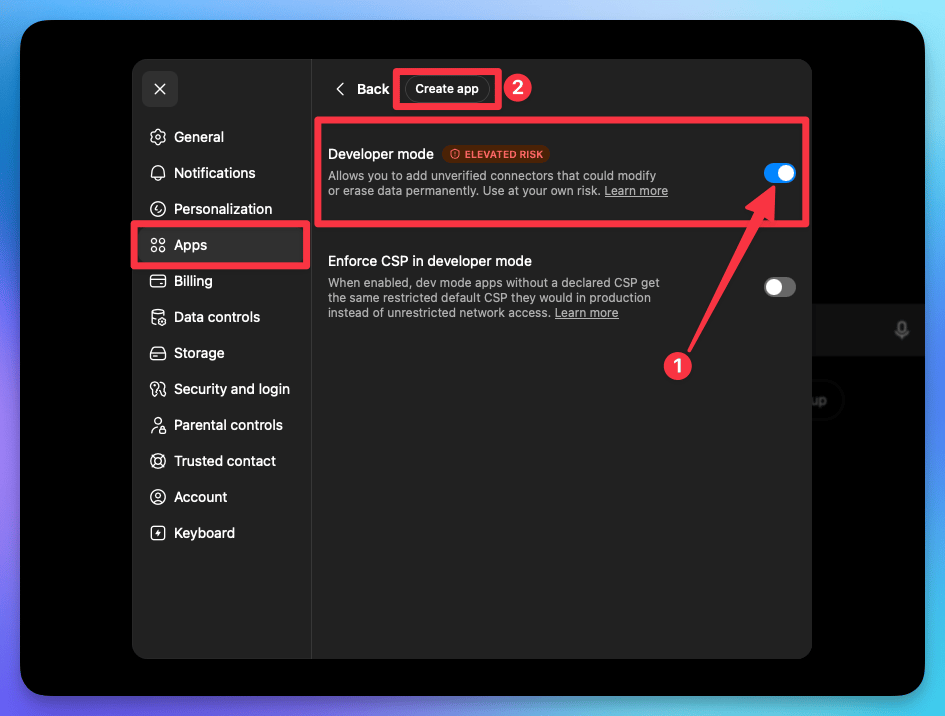
 Switch on **Developer mode** (this lets you add a custom connector), then click **Create app**
at the top.
Switch on **Developer mode** (this lets you add a custom connector), then click **Create app**
at the top.
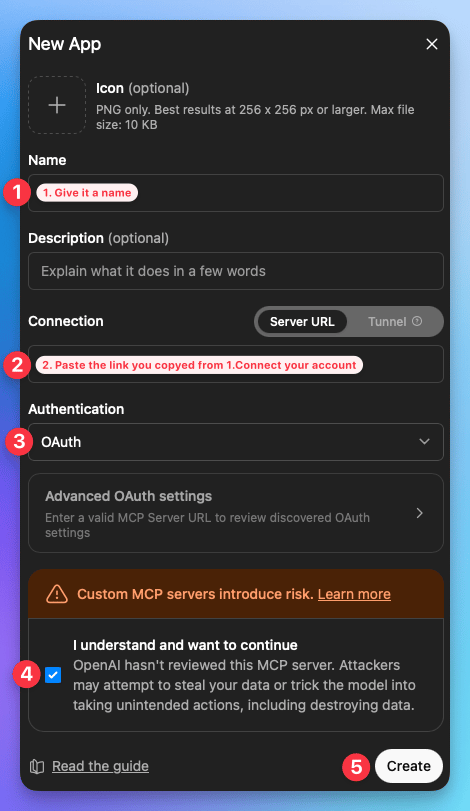
 Give it a name, paste your connection link into the **Server URL** field, set
**Authentication** to **OAuth**, tick *"I understand and want to continue"*, then **Create**.
Give it a name, paste your connection link into the **Server URL** field, set
**Authentication** to **OAuth**, tick *"I understand and want to continue"*, then **Create**.
 Your browser opens Famulor's OAuth consent screen. Review the permissions, then click
**Connect**.
Once the connector is listed in the Claude and ChatGPT directories, you'll also be able to add it in
one click by searching for **Famulor** under Settings → Connectors — no manual URL needed.
## Try it
Start a new chat in Claude or ChatGPT and ask, for example:
"List my assistants and summarize the differences in their current configuration."
"Read my last 5 calls and tell me what my assistant got wrong."
"Show me the latest WhatsApp and Instagram conversations that need attention."
"Summarize the latest email thread with this customer."
## Security & privacy
* **OAuth 2.1** with a branded consent screen — no API key is pasted into the chat client.
* **Read-only scopes** — the connector requests only `assistants:read` and `calls:read`.
* **Secrets masked** — auth tokens stored on your tools are never returned in plain text.
* **No chat-history harvesting** — the connector acts only on your Famulor resources.
* Privacy policy: [famulor.io/privacy](https://www.famulor.io/privacy).
## FAQ
This guide covers **Claude** and **ChatGPT**. The connector is a standard remote MCP server, so it
also works with any other MCP-compatible client (for example Cursor or VS Code) — the setup is the
same: add a custom connector and paste your connection link. See also [MCP Client](/en/mcp/client).
No. Connection is handled by **OAuth** — you simply sign in to your Famulor account and approve.
No key is pasted into the chat app.
Yes. Every tool is scoped to your authenticated workspace, and this profile exposes no write,
purchase, send, call, campaign, delete, telephony, settings, or billing tools.
No. The Assistant & History profile is read-only and cannot place calls, send messages, start
campaigns, buy phone numbers, or perform any other balance-consuming action.
## Support
Questions? Email [support@famulor.io](mailto:support@famulor.io) or browse the rest of the
[documentation](/en/introduction/what-is-Famulor).
Your browser opens Famulor's OAuth consent screen. Review the permissions, then click
**Connect**.
Once the connector is listed in the Claude and ChatGPT directories, you'll also be able to add it in
one click by searching for **Famulor** under Settings → Connectors — no manual URL needed.
## Try it
Start a new chat in Claude or ChatGPT and ask, for example:
"List my assistants and summarize the differences in their current configuration."
"Read my last 5 calls and tell me what my assistant got wrong."
"Show me the latest WhatsApp and Instagram conversations that need attention."
"Summarize the latest email thread with this customer."
## Security & privacy
* **OAuth 2.1** with a branded consent screen — no API key is pasted into the chat client.
* **Read-only scopes** — the connector requests only `assistants:read` and `calls:read`.
* **Secrets masked** — auth tokens stored on your tools are never returned in plain text.
* **No chat-history harvesting** — the connector acts only on your Famulor resources.
* Privacy policy: [famulor.io/privacy](https://www.famulor.io/privacy).
## FAQ
This guide covers **Claude** and **ChatGPT**. The connector is a standard remote MCP server, so it
also works with any other MCP-compatible client (for example Cursor or VS Code) — the setup is the
same: add a custom connector and paste your connection link. See also [MCP Client](/en/mcp/client).
No. Connection is handled by **OAuth** — you simply sign in to your Famulor account and approve.
No key is pasted into the chat app.
Yes. Every tool is scoped to your authenticated workspace, and this profile exposes no write,
purchase, send, call, campaign, delete, telephony, settings, or billing tools.
No. The Assistant & History profile is read-only and cannot place calls, send messages, start
campaigns, buy phone numbers, or perform any other balance-consuming action.
## Support
Questions? Email [support@famulor.io](mailto:support@famulor.io) or browse the rest of the
[documentation](/en/introduction/what-is-Famulor).